This guide covers installation, configuration, and management of the Catalio Slack integration for administrators.
Prerequisites
Before installing, ensure you have:
- Catalio Account with Admin Role: Only organization administrators can connect Slack workspaces. Sign up for Catalio if you don’t have an account.
- Slack Workspace Admin Access: You need permission to install apps in your Slack workspace.
Not an Admin? Contact your organization administrator to connect Slack, or ask them to grant you admin privileges.
Installation
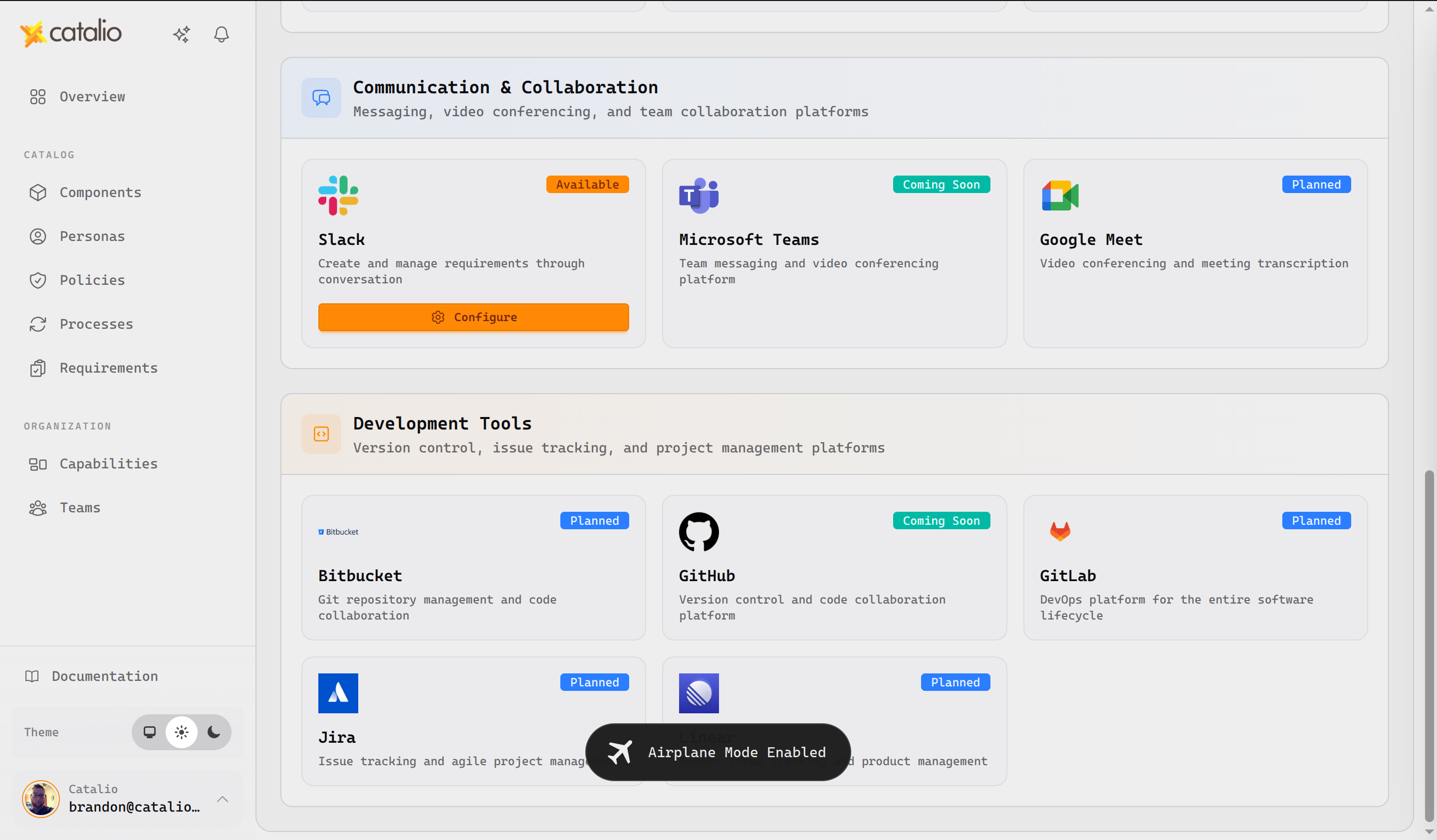
Step 1: Access Slack Integration Settings
- Log in to your Catalio account
- Click Settings in the navigation menu
- Select Integrations → Slack
You’ll see the Slack integration settings page where you can manage workspace connections.
Step 2: Start the Installation
Click the Add to Slack button to begin the OAuth authorization flow.
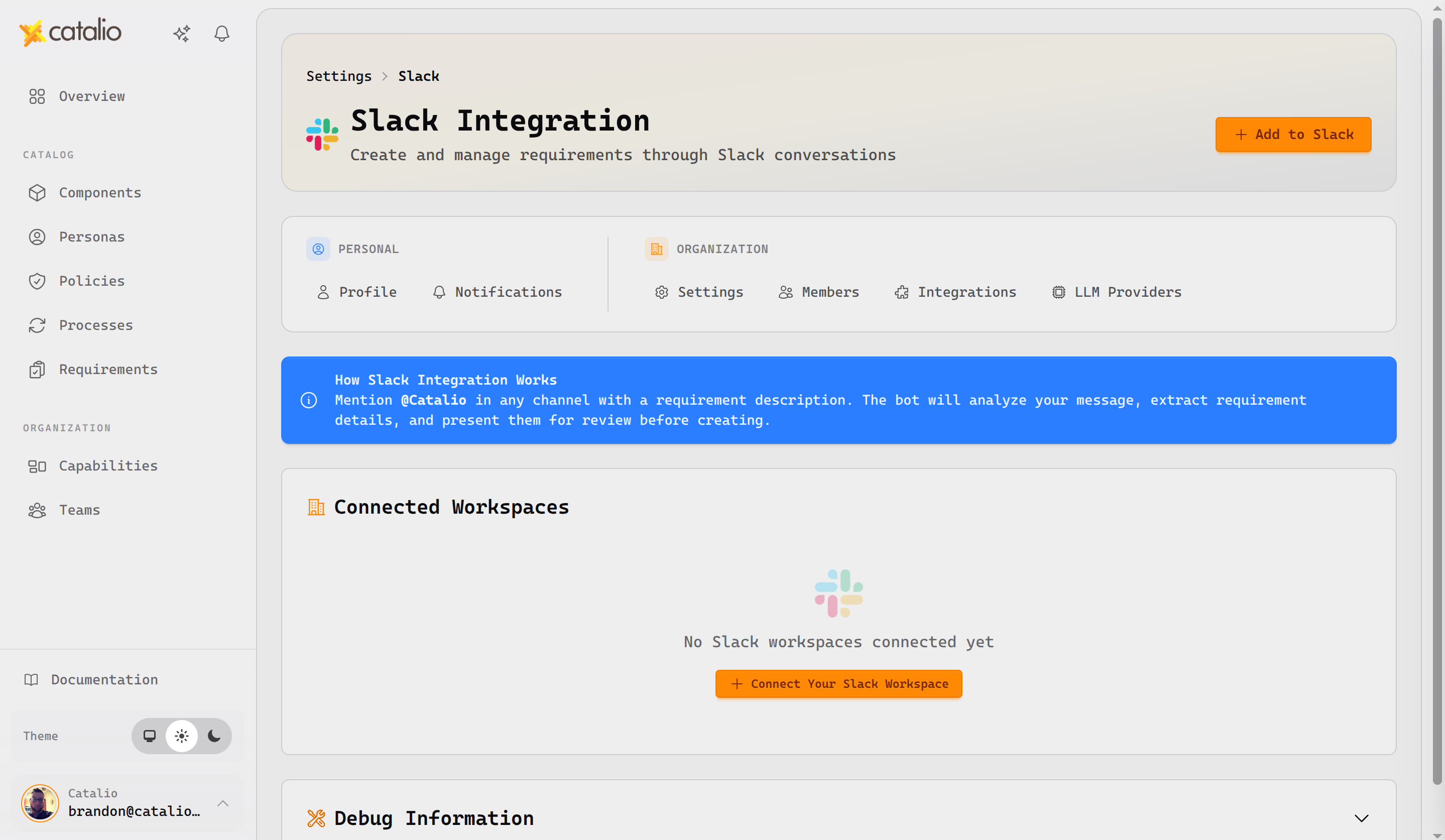
Note: If you don’t see the “Add to Slack” button, you may not have admin privileges. Contact your organization administrator for assistance.
Step 3: Authorize Permissions in Slack
You’ll be redirected to Slack’s authorization screen. Review the requested permissions and click Allow to authorize Catalio.
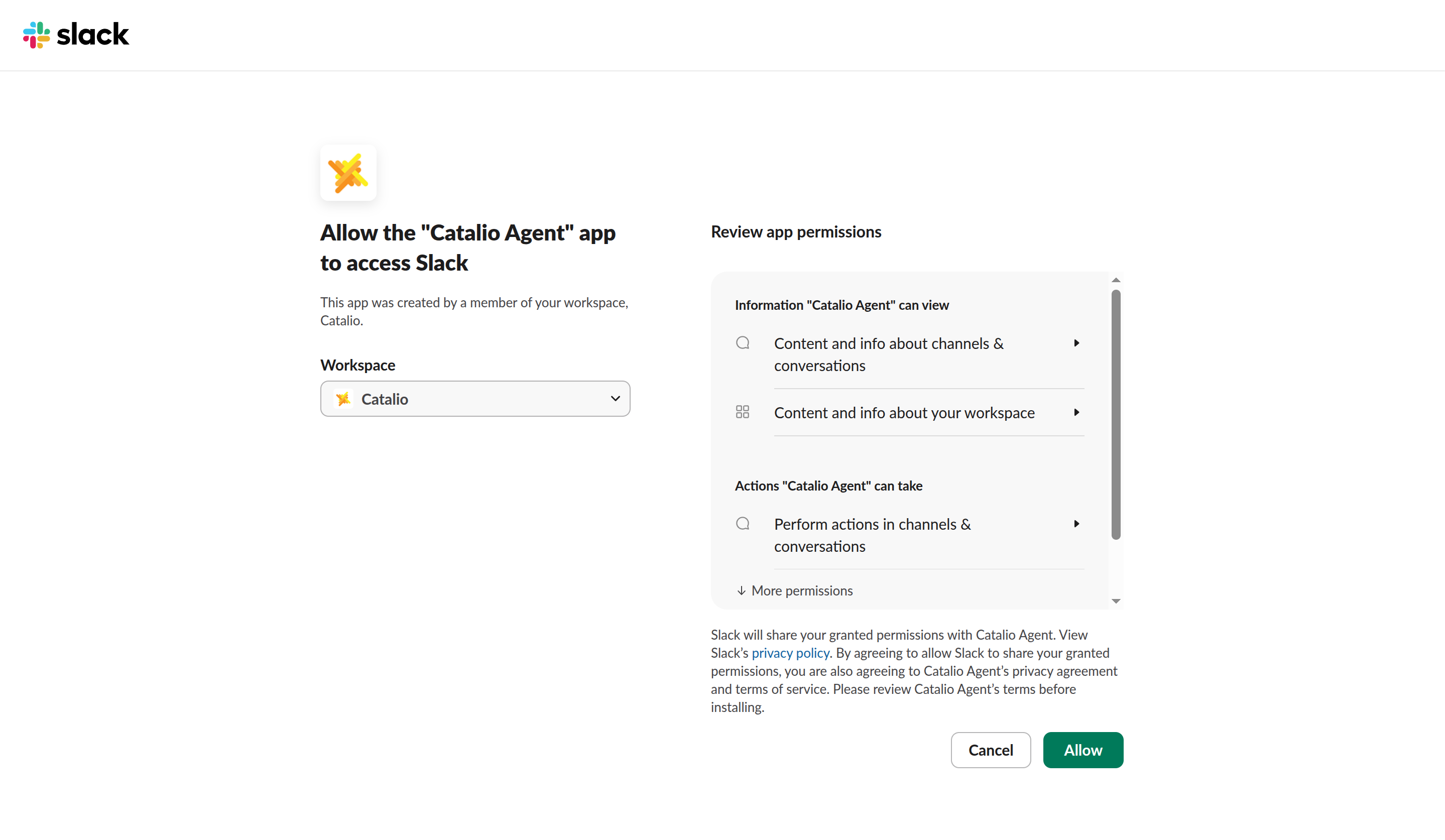
The permissions requested are minimal and focused only on what Catalio needs to function. See Required Permissions Explained for details on each permission.
Step 4: Confirm Connection
After authorization, you’ll be redirected back to Catalio with a success message showing the connected workspace name.
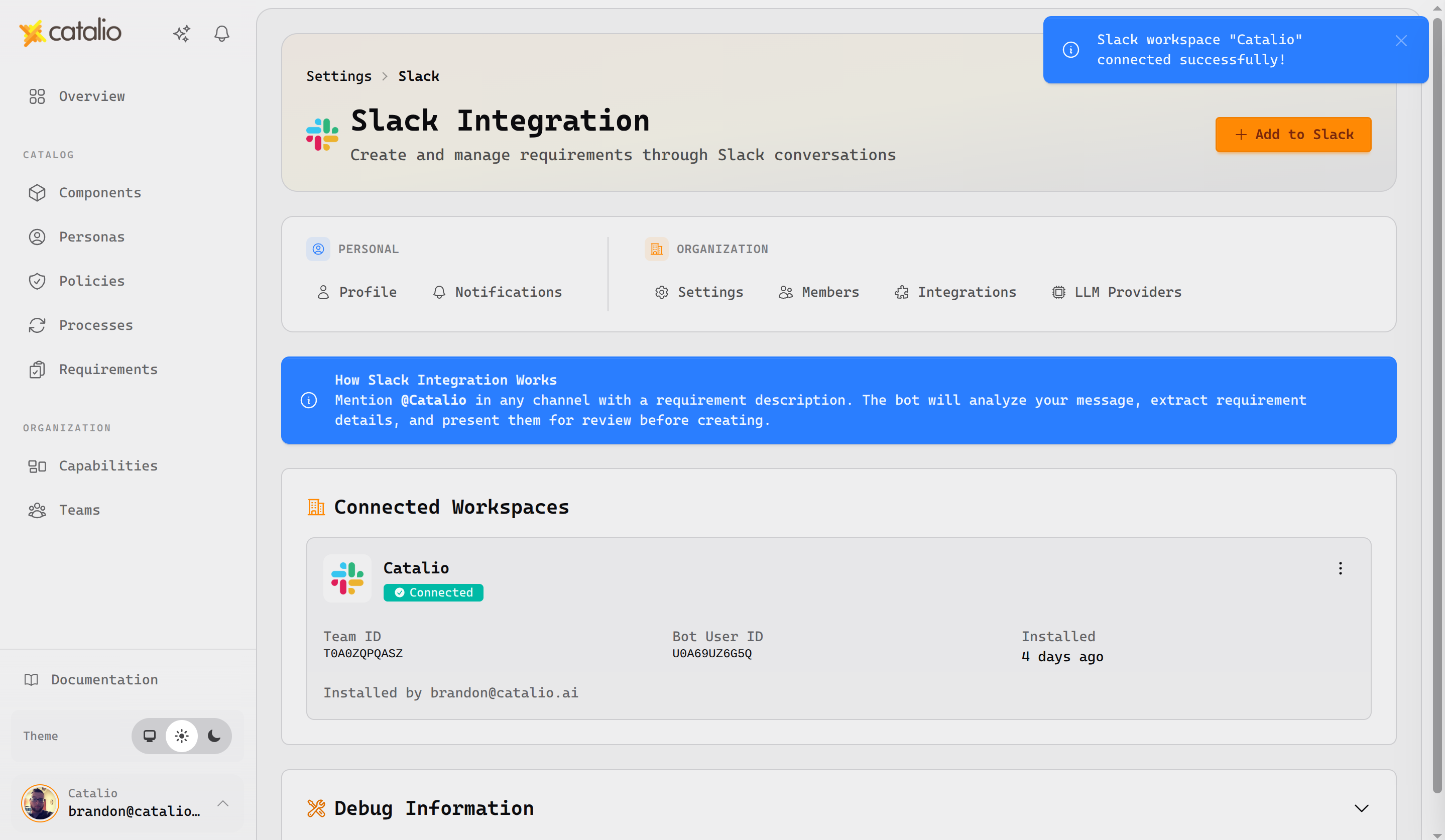
Your Slack workspace is now connected! Your team can immediately start using @Catalio in channels and DMs.
Required Permissions Explained
Catalio requests only the permissions necessary to function as a conversational requirements assistant. Here’s what each permission enables:
| Permission | Purpose |
|---|---|
app_mentions:read |
Allows the bot to see when someone mentions @Catalio in a channel |
channels:history |
Read messages in channels where the bot is invited (for context) |
chat:write |
Send messages as the Catalio bot to respond to your requests |
commands |
Reserved for future slash command features |
im:history |
Read conversation history in direct messages with the bot |
im:read |
Access direct message conversations with the bot |
im:write |
Send direct messages to users who DM the bot |
users:read |
Look up user information to link Slack users with Catalio accounts |
Why These Permissions?
- Conversational AI: The history permissions allow Catalio to understand context from previous messages in a conversation thread
- Privacy-Focused: The bot only reads messages in channels where it’s explicitly invited or in direct messages sent to it
- No Broad Access: Catalio does not request workspace-wide message access or admin permissions
Configuration
Organization Linking
The Slack workspace connects to a single Catalio organization:
- All users in the Slack workspace can interact with that organization’s data
- User permissions in Catalio determine what actions each person can perform
- Switching organizations requires reconnecting through Catalio settings
User Matching
Catalio matches Slack users to Catalio accounts by email:
- When a user messages @Catalio, their Slack profile email is retrieved
- Catalio searches for a user with that email in the connected organization
- If found, requests execute with that user’s permissions
- If not found, the user receives instructions to update their email
Important
Inviting Catalio to Channels
After installation, invite Catalio to channels where your team discusses requirements:
- Navigate to the target channel
- Type:
/invite @Catalio - Or mention the bot:
@Catalio(Slack will offer to add the app)
Tip: Only invite Catalio to channels where your team discusses requirements to keep conversations focused.
Security
Authentication
The Slack integration uses OAuth 2.0 with secure token storage:
- Tokens are encrypted at rest
- Tokens expire and are automatically refreshed
- No passwords are stored in Slack or transmitted through messages
Data Privacy
- Catalio only reads messages where @Catalio is mentioned
- Direct messages to Catalio are processed for requirements management
- Message content is not stored beyond the conversation context
- All data remains within your Catalio organization
Webhook Security
Incoming webhooks from Slack are verified using Slack’s signing secret, signed OAuth state tokens, and timestamp checks to reduce replay risk.
Managing the Integration
Viewing Connection Status
Check your Slack connection status:
- In Catalio: Settings > Integrations > Slack
- Each workspace shows:
- Workspace name
- Connection status (Connected/Disconnected)
- Installation timestamp
- Installed by user
Disconnecting a Workspace
If you need to disconnect a Slack workspace:
- Navigate to Settings > Integrations > Slack
- Find the workspace in the Connected Workspaces list
- Click the menu (three dots) on the workspace card
- Select Disconnect
- Confirm the action
After disconnecting:
- The Catalio app remains in Slack but shows “Not Connected”
- Users cannot interact with Catalio until reconnected
- No data is deleted from either platform
Reconnecting a Workspace
If your connection is lost or you need to switch organizations:
- Navigate to Settings > Integrations > Slack
- Click Add to Slack
- Complete the OAuth flow in Slack
- The existing workspace connection will be updated
Note
Technical Information
Rate Limits
The Slack integration includes rate limiting to ensure fair usage:
- Per-user limit: 10 requests per minute
- Automatic throttling: Ephemeral messages notify users when rate limited
- Retry guidance: Users are told how many seconds to wait
Self-hosted deployments
If you run a self-hosted Catalio deployment, configure these URLs in your Slack app settings:
| Endpoint | URL |
|---|---|
| Events Subscription | https://your-domain/api/slack/events |
| Interactive Messages | https://your-domain/api/slack/interactions |
| OAuth Redirect | https://your-domain/oauth/slack/callback |
Subscribe to these bot events:
app_mention— when @Catalio is mentionedmessage.im— direct messages to the botapp_home_opened— when a user opens the App Home tabapp_uninstalled— when the app is removed from the workspace
Admin Troubleshooting
“Add to Slack” Button Not Visible
Cause: You don’t have admin privileges in your Catalio organization.
Solution: Contact your organization administrator to either:
- Connect Slack on your behalf
- Grant you admin privileges
Authorization Declined or Cancelled
If you click “Cancel” or deny permissions on Slack’s authorization screen:
- No workspace is connected
- You’ll see an error message in Catalio
- Simply try again and click “Allow” to complete the installation
“The installation request expired”
The OAuth flow has a 10-minute timeout for security. When this error occurs:
- Return to Settings > Integrations > Slack
- Click Add to Slack again
- Complete the authorization within 10 minutes
“Security validation failed”
This can occur if:
- You opened the authorization link in a different browser
- The session expired
Solution: Start fresh from the Catalio app:
- Go to Settings > Integrations > Slack
- Click Add to Slack
- Complete the flow in the same browser session
Workspace Shows Disconnected
Common causes of disconnection:
- Token expiration (requires re-authorization)
- App was uninstalled from Slack and reinstalled
- Organization settings changed
Solution:
- Log into Catalio at catalio.ai
- Navigate to Settings > Integrations > Slack
- If status shows “Disconnected”, click Add to Slack
- Complete the OAuth authorization in Slack
- Verify the status changes to “Connected”
Bot Not Responding in Channels
If Catalio doesn’t respond when mentioned:
- Check if invited: Ensure Catalio is a member of the channel (
/invite @Catalio) - Check permissions: The workspace may need to re-authorize (disconnect and reconnect)
- Check status: Visit the App Home tab to see if there are any connection issues
When to Contact Catalio Support
Contact support@catalio.ai if:
- OAuth authorization fails repeatedly
- Connection status doesn’t update after reconnecting
- Multiple users experience the same issue simultaneously
- Error messages mention internal server errors
- You suspect a security issue
When contacting support, please include:
- Your Slack workspace name
- Your Catalio organization name
- The error message you received
- Steps you’ve already tried
Next Steps
- Slack Agent Usage Guide - Learn how users interact with Catalio in Slack
